
 Sign in with Facebook
 Sign in with Google
 Sign in with Apple


Is Your iPhone New or Refurbished? Here's How to Check
Buying an iPhone in 2025 isn’t as simple as picking a colour and a carrier. With Apple’s prices climbing each year, plenty of Aussies are turning to pre-owned or refurbished phones to save money. The trouble is, not every device sold online is what it claims to be.
A quick five-minute check can save you from a bad buy. Whether you’re shopping on a resale site, swapping with a friend, or browsing refurbished models, it pays to know how to check if an iPhone is new or refurbished.
Let’s start with the basics: what “refurbished” actually means and why it matters.
What Does “Refurbished” Mean for iPhones?
People toss around “used,” “refurbished,” and “ex-demo” as if they’re the same thing. They’re not. A used phone is usually sold as-is by a previous owner and could have hidden issues. Ex-demo or open-box models are generally near new, though they’ve spent some time on display or were returned after a short trial.
If you’re unsure how refurbished models differ from brand-new ones, check out our detailed comparison of refurbished vs brand-new iPhones for a clearer understanding before buying.
A refurbished iPhone, on the other hand, has been carefully inspected, repaired if needed, restored to factory settings, and wiped of all previous data. Apple’s own Certified Refurbished program, for instance, includes a brand-new battery, a new outer shell, full diagnostic testing, and a one-year warranty.
That’s the level of quality we aim to match with our Phonebot Refurbishment Process, where every device is tested and graded before resale. Still, not every reseller follows such a strict standard. This is why knowing how to check whether a phone is legit on your own is so important.
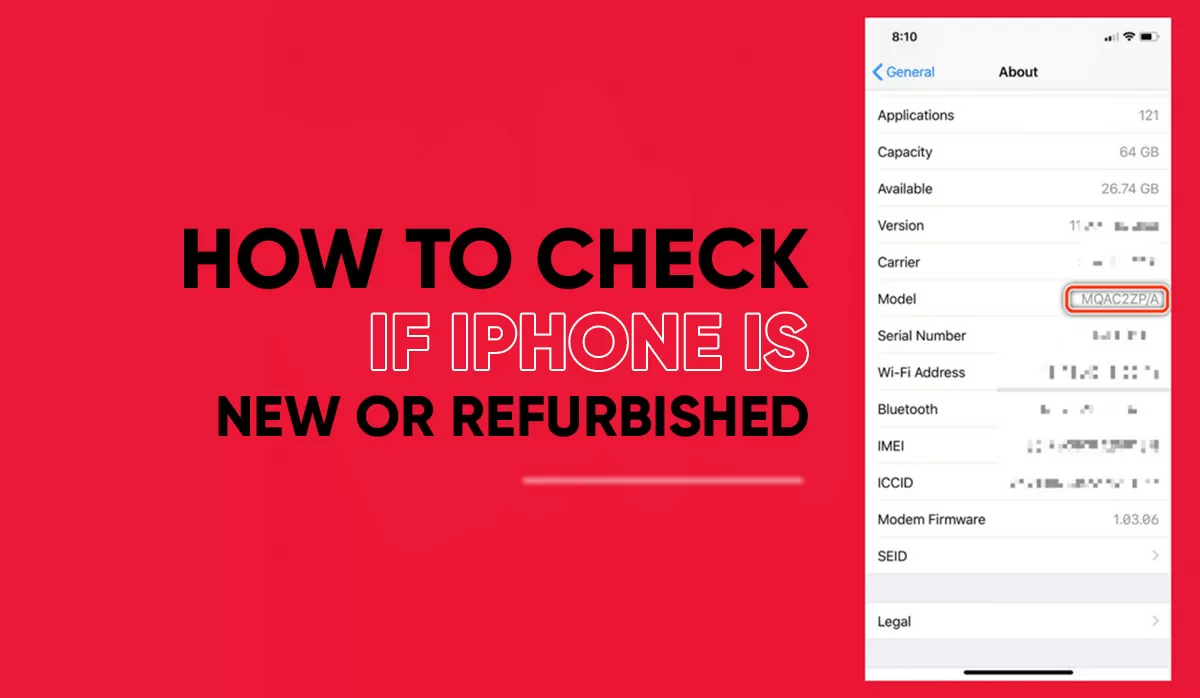
How to Check if an iPhone Is New or Refurbished (Model Number Method)
The quickest way to check whether your iPhone is new, refurbished, or a replacement is by looking at its model number.
- Open Settings > General > About.
- Find the Model Number (you might need to tap it once to reveal the full code).
- Look at the first letter. That tiny detail tells you exactly where the phone came from.
Apple uses a simple letter code in every model number to show the device’s origin. Here’s what each one means:
Prefix | What It Means |
M | Brand-new retail device |
F | Refurbished by Apple or an authorized carrier |
N | Replacement device (issued under warranty or AppleCare) |
P | Custom-engraved or personalised iPhone |
How to Verify iPhone Authenticity Using Serial or IMEI Number
Every iPhone has a serial number and IMEI code that identify it uniquely. These numbers tell you if the phone is genuine, still under warranty, or reported as lost or stolen.
To find them:
- Dial *#06# on the keypad, or
- Go to Settings → General → About.
Step 1: Use Apple’s Check Coverage Page
Visit Apple’s Check Coverage site. Enter the serial number and type in the CAPTCHA code. You’ll see the model name, activation date, and any remaining warranty or AppleCare coverage.
If Apple doesn’t recognise the serial number, walk away. That usually means the iPhone isn’t authentic or its serial has been tampered with.
Step 2: Check the GSMA IMEI Database
You can also check the GSMA IMEI database, which many phone checkers online use. It’ll tell you if a phone is blacklisted or reported stolen. If the IMEI printed on the box doesn’t match the one in the Settings menu, that’s another red flag.
When you’re buying from a reseller, always ask for these numbers before paying. A legitimate seller will happily provide them.
Related Products
![Apple iPhone 14 5G (128GB) [Like New]](https://www.phonebot.com.au/image/cache/catalog/refurbished/apple/iphone-14/iphone-14/blue-200x170.jpg "Apple iPhone 14 5G (128GB) [Like New]")
![Apple iPhone 15 Pro 5G (128GB) [Grade A]](https://www.phonebot.com.au/image/cache/catalog/refurbished/apple/iphone-15-pro/apple-iphone-15-pro-black-titanium-200x170.jpg "Apple iPhone 15 Pro 5G (128GB) [Grade A]")
![Apple iPhone 15 5G (128GB) [Grade A]](https://www.phonebot.com.au/image/cache/catalog/refurbished/apple/iphone-15/apple-iphone-15-plus-blue-200x170.jpg "Apple iPhone 15 5G (128GB) [Grade A]")
![Apple iPhone 16 5G (128GB) [Grade A]](https://www.phonebot.com.au/image/cache/catalog/refurbished/apple/iphone-16/apple-iphone-16-ultramarine-200x170.jpg "Apple iPhone 16 5G (128GB) [Grade A]")
![Apple iPhone 16 Pro 5G (128GB) [Grade B]](https://www.phonebot.com.au/image/cache/catalog/refurbished/apple/iphone-16-pro/apple-iphone-16-pro-desert-titanium-200x170.jpg "Apple iPhone 16 Pro 5G (128GB) [Grade B]")
ONLY 1 LEFT
How to Check Battery Health and Performance
A refurbished iPhone can look spotless, but the battery tells the real story.
Navigate to Settings → Battery → Battery Health & Charging.
Two key indicators will appear here:
- Maximum Capacity: This shows how much charge the battery can still hold compared to when it was new. A healthy range is 85–100%.
- Peak Performance Capability: If it says “Your battery is supporting normal peak performance,” you’re good. Any warning message like “performance management applied” means the battery is worn and may need replacement.
How to Check for Replaced or Non-Genuine Parts
Since iOS 15.2, Apple has made it easier to spot if a phone has replaced or non-genuine components.
Head to Settings → General → About and scroll to Parts and Service History.
You’ll see a list of major parts, like the battery, display, and camera, and whether they’re “Genuine Apple Parts” or “Unknown Parts.”
“Unknown” doesn’t always mean bad, but it often means the repair was done by a third-party technician using non-Apple components.
If multiple parts are flagged as unknown, or there’s a mismatch between the serial number on the part and the phone’s system data, it’s best to walk away.
How to Check if an iPhone Is Locked or Unlocked
The last thing you want is to buy an iPhone that’s stuck with another carrier.
To confirm this:
- Navigate to Settings → General → About.
- Scroll down to Network Provider Lock.
If it says “No SIM restrictions,” that means the phone is unlocked and can be used with any Australian SIM card. Anything else means it’s tied to a specific carrier.
Physical Inspection Checklist for Preowned iPhones
Even if the software looks fine, it’s always a good idea to physically inspect your iPhone too. Here are a few recommendations from Apple’s official guide:
- Screen: Look for scratches, cracks, or uneven brightness.
- Ports: Check for lint or debris inside the charging port and speakers.
- Buttons: Make sure the home button (if any), side buttons, and mute switch work smoothly.
- Cameras: Open the camera app and test the front and back lenses.
- Activation Lock: Ensure the phone isn’t still linked to someone else’s Apple ID. If you see a prompt for another person’s credentials, we’d recommend not buying it.
These checks only take a few minutes, but they can reveal plenty about a potential purchase.
Common Red Flags When Buying Online
Buying an iPhone online is convenient, but it also requires caution. Many scams take place on resale platforms, so it is worth knowing what to look out for before you pay.
A mismatched serial number or IMEI is one of the biggest warning signs. Each iPhone has a unique identifier that must match across the box, the device settings, and Apple's database. If the numbers are different, the phone could have been altered or even stolen.
Packaging can also provide important clues. Authentic iPhones come in clean, tightly sealed boxes with uniform tape. If the box looks rewrapped, has rough edges, or shows signs of being opened before, the phone may have been repackaged or previously used.
In addition, be cautious if the seller cannot provide a receipt or proof of purchase. A missing invoice usually means the device cannot be verified or may not qualify for warranty. For more guidance on what to verify before purchasing, check our guide on what to look for when buying refurbished iPhones.
Finally, consider the price carefully. Cheap iPhones are great. But if the deal seems too good to be true, there's a good chance it's not what it appears to be. Scammers often use unrealistic discounts to push faulty, refurbished, or counterfeit devices.
Refurbished vs Used vs Replacement iPhones
Here’s a quick breakdown of how the three options compare:
Feature | Refurbished | Used | Replacement |
Professionally restored | Yes | No | Yes |
Warranty | 6-12 months | None or limited (if offered by seller) | 90 days to 1 year (Apple standard) |
Quality checks | Full diagnostics, cosmetic grading, and part testing | None or minimal | Checked and configured by Apple |
Battery | 85–100% capacity | Varies, often degraded | 100% new Apple battery |
Price range | Mid-range, best value | Lowest cost, highest risk | Similar to refurbished, depending on the mode |
Tips to Avoid Fake or Tampered iPhones
Authenticity matters more than price. Let’s take a look at how you can protect yourself:
- Check the serial number on Apple’s website before paying.
- Inspect battery and parts history through the Settings menu.
- Avoid private sellers who won’t provide verification proof.
- Buy from trusted refurbishers like Phonebot, who follow Apple’s inspection and data-erasure protocols.
Wrap Up
Buying an iPhone is an investment, and making sure it’s genuine protects both your wallet and your experience. A few careful checks can help you steer clear of scams and find a phone that performs like new.
If you’d rather skip the guesswork, explore our range of Refurbished iPhones. All of our devices are professionally tested, graded, and backed by warranty. In the end, peace of mind is worth far more than a risky bargain.
Posted by Liam Harris


Liam Harris
I’m Liam Harris, a tech writer at Phonebot with a passion for technology. I provide trusted insights on refurbished phones, tablets, and accessories, focusing on quality, sustainability, and affordability. With a solid understanding of the refurbished market, I offer practical tips, product comparisons, and the latest tech updates to help you make informed decisions. My goal is to connect you with high-quality devices that fit your budget and lifestyle. Stay tuned for more on the best in refurbished tech here at Phonebot.

 Google
 Apple
Apple Facebook