
 Sign in with Facebook
 Sign in with Google
 Sign in with Apple


How to Check if an iPhone Has Been Repaired?
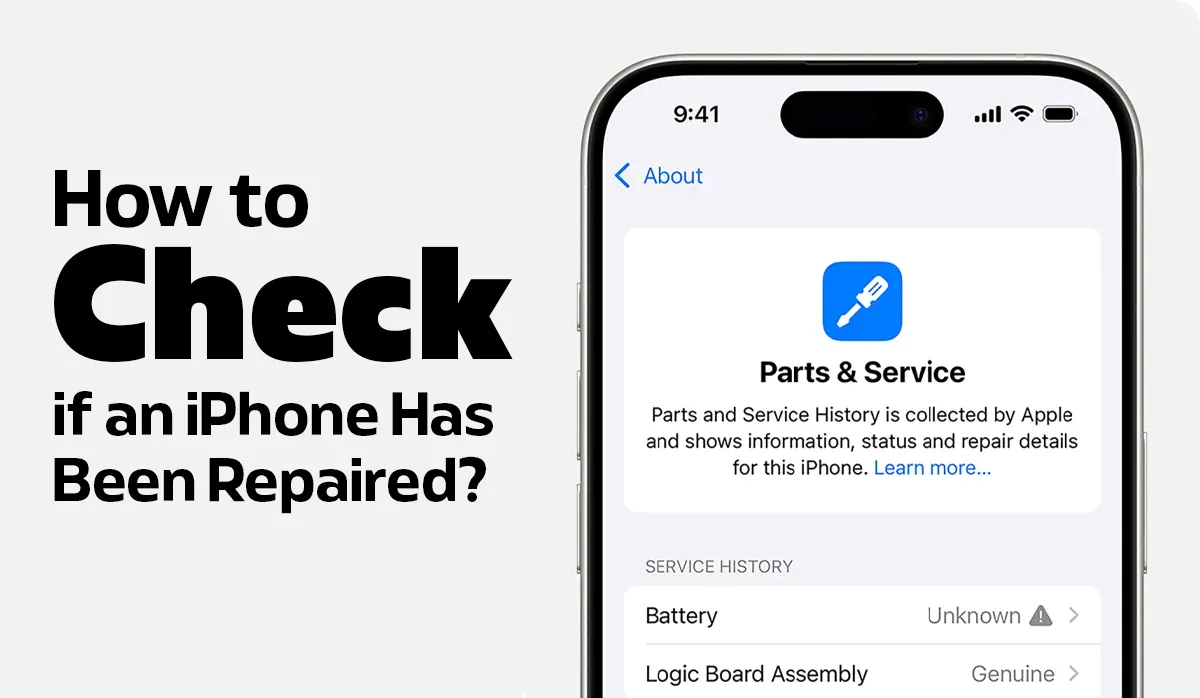
When buying a used or refurbished iPhone, one of the most common concerns is whether the device has been repaired before. Repairs are not always a bad thing, but understanding what was repaired, how it was done, and whether the parts are genuine helps you make a confident decision. Apple now provides system-level indicators that make this easier, especially when combined with physical and functional checks. If you’re still learning how refurbished devices are evaluated overall, this fits into the broader context of the iPhone refurbishment buying guide.
Check Apple’s Parts and Service History (iOS 15.2 and Later)
Apple introduced Parts and Service History in iOS 15.2 to improve transparency around iPhone repairs. This section shows whether key components have been replaced and whether Apple recognises the parts as genuine.
How to Find Parts and Service History in Settings
Open Settings, go to General, then tap About.
If the iPhone has had a repair, you may see a section called Parts and Service History.
Apple lists repairs for major components such as:
- Battery
- Display
- Camera
Each listed part will show whether it is a Genuine Apple Part or an Unknown Part. If no repairs are detected, this section may not appear at all.
What “Unknown Part” Means on an iPhone
An Unknown Part message means Apple cannot verify the component as a genuine Apple part or confirm that it was installed by an Apple Authorised Service Provider. This commonly occurs after third-party repairs or when aftermarket components are used. This distinction is important when comparing different device conditions, similar to how buyers assess the pros and cons of refurbished phones before purchasing.
An unknown part does not automatically mean the phone is unreliable, but it does affect transparency and may influence resale value.
The battery is one of the most frequently replaced components on the iPhone. Apple provides several ways to check battery condition and replacement history.
How to Tell If the iPhone Battery Was Replaced
Go to Settings > Battery > Battery Health & Charging.
Look for:
- Maximum capacity percentage
- A “Service” message
- Battery details listed in Parts and Service History
A battery replacement may appear here if Apple recognises it.
Signs of a Non-Genuine Battery
Indicators of a third-party battery replacement may include:
- Battery health data missing or not updating
- Sudden battery percentage drops
- Performance management warnings
- Inconsistent charging behaviour
Battery condition is one of the main differences people look for when trying to understand whether a device is new or refurbished.
Check if the iPhone Screen Has Been Replaced
Display replacements are common, especially after drops or cracks. Apple systems and visual checks can help identify screen repairs.
True Tone Check After Screen Replacement
True Tone is disabled when a display is replaced with a non-genuine screen or when calibration data is missing.
Go to Settings > Display & Brightness and check if True Tone is available.
If True Tone is missing and was previously supported, the screen may have been replaced.
Physical Signs of Screen Replacement
Inspect the display closely for:
- Uneven bezels
- Screen gaps
- Light bleed around edges
- Delayed or inconsistent touch response
Screen quality and calibration are also part of the broader refurbishment process and tools used during professional device reconditioning.
Check Camera, Face ID, and Sensors
Camera modules and sensors are tightly integrated with Apple’s security and display systems.
Camera Replacement Indicators
Check the camera for:
- Blurry images
- Autofocus issues
- Night mode inconsistencies
- Camera-related warnings in Settings
Camera replacements may also appear in Parts and Service History on newer iOS versions.
Face ID and Sensor Functionality Checks
Test Face ID by setting it up again in Settings.
Also check:
- Screen turning off during calls (proximity sensor)
- Auto-brightness adjustments
- Face ID failure messages
Sensor problems often appear after screen or camera repairs.
Inspect the iPhone Physically for Repair Signs
Not all repairs are recorded in software. A physical inspection can reveal signs of previous work.
Screw and Frame Inspection
Look at the bottom pentalobe screws.
Signs of repair include:
- Scratched or worn screws
- Uneven frame alignment
- Slight separation between screen and body
These suggest the device has been opened.
Check for Water Damage or Internal Repairs
Check the Liquid Contact Indicator (LCI) inside the SIM tray using a light.
A red or pink indicator suggests water exposure.
Also watch for:
- Corrosion on ports
- Fog inside the camera lens
- Discolouration near connectors
Verify the iPhone Using Serial Number and IMEI
Apple’s verification tools can confirm device identity and warranty status.
How to Check Warranty and Repair Coverage
Use Apple’s Check Coverage tool with the serial number.
This shows:
- Warranty status
- AppleCare coverage
- Estimated purchase date
While it doesn’t list all repairs, it helps confirm authenticity.
Match Device Details With the Listing
Ensure the following match the seller’s description:
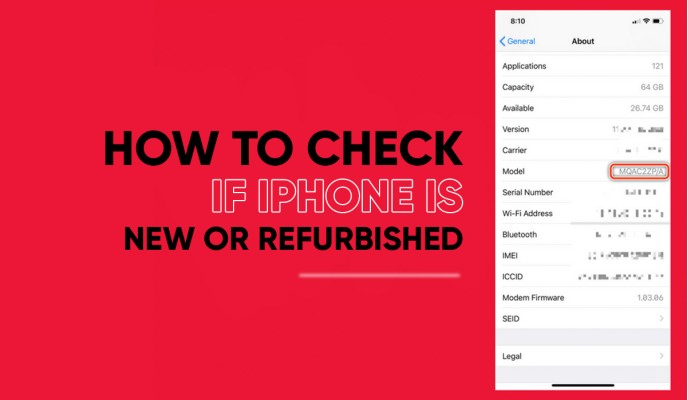
- Model number
- Storage capacity
- Colour
- Network compatibility
Mismatches may indicate part replacement or incorrect listing details.
Apple Repairs vs Third-Party Repairs – What’s the Difference?
Apple repairs are logged in the system and use verified components. Third-party repairs may not appear in Parts and Service History, even if done professionally.
The quality of a repair depends on:
- Parts used
- Installation accuracy
- Post-repair testing
A third-party repair can still be reliable if performed correctly and disclosed transparently.
Is a Repaired iPhone Safe to Buy?
A repaired iPhone is not automatically a poor choice. Most refurbished devices have had at least one component replaced as part of normal reconditioning. What matters is whether the repair was disclosed, the device was properly tested, and key features like Face ID and battery health function as expected. This is why buyers comparing different options often consider refurbished iPhones rather than unverified used devices.
What to Look for When Buying a Refurbished iPhone
When evaluating a refurbished device, focus less on whether it was repaired and more on how it was refurbished. Most professionally refurbished iPhones go through component replacements as part of normal reconditioning, so the quality of the refurbishment process matters far more than the repair itself.
Reliable sellers clearly explain how devices are inspected, tested, and graded before resale. A refurbished iPhone that has undergone structured testing, transparent grading, and warranty coverage offers significantly more confidence than a device with an unclear history.
Key indicators of a reliable refurbished iPhone include:
- Multi-point inspection and functional testing
- Clear grading standards, such as Open Box Like New, Grade A, or Grade B
- Battery health and internal component checks
- At least a 12-month warranty
- A change-of-mind return window
Transparency and after-sales support are stronger indicators of device reliability than whether a specific part was replaced. A well-documented refurbishment process reduces risk and helps buyers make informed decisions.
Posted by Liam Harris


Liam Harris
Liam Harris is a tech writer at Phonebot, covering refurbished phones, tablets and wearables since 2022. His buying guides and model comparisons draw on live Australian market pricing and Phonebot's experience rehoming over one million devices.


 Google
 Apple
Apple Facebook